Bot Players
Bots fill the empty slots in your round. They run your course through the same character controller your players use, navigate a waypoint graph you author, and lose jumps the way people actually lose jumps.
Overview
A parkour round with nobody in it is not a race. Bots give a single-player session an opponent and fill the slots a lobby didn't.
The important design decision is what a bot is: an input provider, not a movement system. A bot computes a move vector and a jump intent and feeds them to the same public methods on the character that a gamepad feeds. It never writes a transform and never sets a velocity.
The navigation graph
Bots navigate a typed waypoint graph that lives in your level scene: a NavGraph object with NavNode children, joined by directed edges that say how to get from one node to the next.
| Field | Type | What it does |
|---|---|---|
Walk | Edge | Hold the stick toward the node. The default for flat ground. |
Jump | Edge | Run at the gap and jump. The bot launches when the ground runs out — at the lip — not at the node, so it survives sloppy node placement. |
Drop | Edge | Walk off and fall, where the landing is within a safe height. |
Interact | Edge | Operate the button at this node — then walk on. For a wall that only opens once something is pressed. |
Edges are directed on purpose — a drop off a ledge is traversable one way only, and pretending otherwise is how a bot ends up trying to walk up a cliff.
Add a NavGraph
An empty GameObject in your level scene with theNavGraphcomponent.Place nodes along the route
Use Append Node At Scene View Pivot — it raycasts onto the collider under your view, so nodes land on the surface a bot will actually stand on, not on the mesh you can see.Mark the finish
Tick Is Finish on the node(s) inside your end zone. Without one, bots have nothing to route to.Chain and type the edges
Chain Nodes With Walk Edges gives you a first pass; upgrade the gaps toJumpand the button-wall toInteract. A course that needs a movement mode the kit doesn't ship should route around it with aWalkorDropedge instead —NavEdgeTypehas no edge for a mode that doesn't exist.Snapshot the template
Setup Window → Update Template From Level Scene. Skip this and your next Install overwrites the graph with the old template.
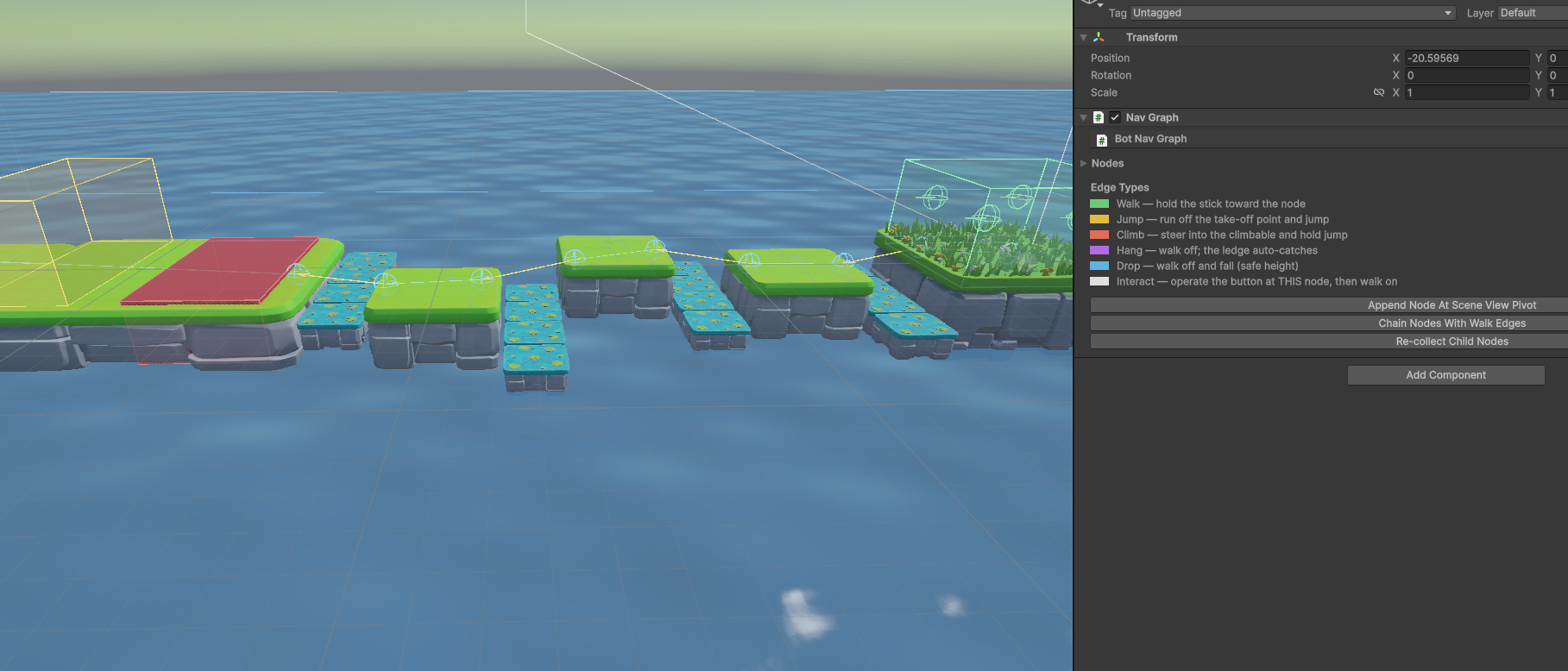
Authoring the graph from code
The graph can also be built programmatically: create NavNode children under a NavGraph, wire edges between them with TrySetInferredEdge(it adds the edge when none exists and retypes an unlocked one), thenCollectChildNodes() and RegisterNow() once the graph is complete.
public class GenerateNavGraph : MonoBehaviour
{
    public void BuildTheGraph()
    {
        NavGraph graph = GetComponent<NavGraph>();

        // Create three nodes
        GameObject node1Obj = new GameObject("Node1");
        node1Obj.transform.SetParent(graph.transform);
        node1Obj.transform.position = new Vector3(0, 0, 0);
        NavNode node1 = node1Obj.AddComponent<NavNode>();

        GameObject node2Obj = new GameObject("Node2");
        node2Obj.transform.SetParent(graph.transform);
        node2Obj.transform.position = new Vector3(5, 0, 0);
        NavNode node2 = node2Obj.AddComponent<NavNode>();

        GameObject node3Obj = new GameObject("Node3");
        node3Obj.transform.SetParent(graph.transform);
        node3Obj.transform.position = new Vector3(5, 0, 5);
        NavNode node3 = node3Obj.AddComponent<NavNode>();

        // Link them: Walk to node2, Jump from node2 to node3
        node1.TrySetInferredEdge(node2, NavEdgeType.Walk);
        node2.TrySetInferredEdge(node3, NavEdgeType.Jump);
        node3.ConfigureGenerated(true);  // Mark as finish

        // A graph collects its child nodes once, when it is enabled; new
        // children need an explicit re-collect before registering.
        graph.CollectChildNodes();
        graph.RegisterNow();
    }
}
Difficulty: KPI profiles
A bot that runs a perfect line every time is a robot, and beating it means nothing. Human-likeness lives in the decision layer: a bot picks worse, hesitates, and sometimes simply fails to press jump at the lip — and then takes the real fall and the real respawn.
Those dials are a BotProfile asset. Every field is a range, rolled once when the bot spawns and then fixed for its life — so four bots from one profile are siblings, not clones.
| Field | Type | Default | What it does |
|---|---|---|---|
Speed Factor | Vector2 (min, max) | 0.97 – 1.00 | Fraction of full speed. Keep this band narrow — see the callout below. |
Drop Chance | Vector2 (min, max) | 0.02 – 0.06 | Chance per jump that the bot runs off the lip WITHOUT jumping. A real fall, a real respawn, a real fail on its result row. |
Wrong Turn Chance | Vector2 (min, max) | 0.03 – 0.08 | Chance per edge of briefly steering off-line. On a narrow platform this genuinely walks the bot into the drink. |
Wrong Turn Seconds / Degrees | Vector2 (min, max) | 0.3–0.8s / 25–70° | How long a wrong turn lasts and how far off-line it goes. |
Hesitation Seconds | Vector2 (min, max) | 0 – 0.35 | A pause at the take-off node before committing to a jump. |
Three presets ship — Casual, Average and Skilled — and they are ordinary assets: retune them, or author your own, without touching code. Install never overwrites a profile you have edited.
Adding bots
In game, the host opens the Escape menu and clicks Add Bot. The button is hidden for clients (a bot is a server-owned object, so only the host can field one) and disabled once the round is under way, with the reason in the label.
From code, it is one call:
using Curitor.PartyCoreKit.AI;
using UnityEngine;

// The same seam the Escape menu's "Add Bot" button uses.
// Host-side only -- a bot is a server-owned object.
public class FillTheLobby : MonoBehaviour
{
    [SerializeField] private BotProfile profile;   // null = a random stock preset

    public void FillRemainingSlots()
    {
        BotSpawner spawner = BotSpawner.Instance;
        if (spawner == null) return;

        // Capacity math already accounts for humans AND bots, so this
        // can never over-fill the level's spawn grid.
        while (spawner.CanAddBot())
            if (!spawner.AddBot(profile)) break;
    }
}The session capacity is fixed when hosting starts and is capped by the selected level's maximum player count. A level switch to a smaller capacity is refused; end the session and host again with a smaller size. Keep the declared capacity and actual spawn grid aligned. Bots wait for a complete grid, and a human joining before its reserved point exists waits for approval for up to five seconds before receiving a failure reason.
These are course runners. Enemy patrol, chasing and combat decisions are not part of this module; an enemy model alone does not provide enemy AI.
When a bot gets stuck
It will, while your graph is young. Bots are built to say so precisely, and to recover on their own.
A bot that stops making progress re-plansfrom where it actually is — and if it still can't get past, it takes the ordinary fail and respawn a human takes. Never a bot-specific teleport. The worst case is a bot that keeps failing and keeps respawning, which is exactly what a struggling player does, and the round timer ends it either way. A bot cannot soft-lock a round.
Everything is named in the console and in the Inspector: which node it was heading to, over which edge type, and how close it got. Select a live bot to see its rolled KPIs, its current target — and a warning when the jump it is about to attempt was rolled as a deliberate botch. That last one matters: without it, a bot that fell because it is a 15%-drop Casual and a bot that fell because your jump edge is wrong look exactly the same.
// Every bot's KPI roll derives from the session seed plus its bot index.
// Fix the seed and you replay the exact same field of runners -- which is
// what makes a bot regression reproducible instead of anecdotal.
BotSpawner.Instance.SessionSeed = 20260714;