Behaviours & Rules
Gameplay rules are composed in the Inspector: an event source, conditions that must hold, instructions that run. A pickup, a damage zone, a door with a key — none of them need a new script.
Four event sources
Every rule starts from one of four behaviours: Conditions(polled — "while this holds, fire on the transition"), Trigger (physics volumes with enter/exit and occupant tracking), Interactable (press, hold or multi-press with an on-screen prompt) and Hotkey (an input binding). All four feed the same condition/instruction lists, so a rule behaves identically wherever it is authored.
A destructible crate plays Feedback_Death the moment its own destroy rule fires — one Play Feedback instruction in an Only-If-gated instruction list, no bespoke crate script (see Feedback).
A real bounce or jump pad is a Trigger with one instruction on On Enter: Launch Subject applies an upward, mass-independent impulse to whoever walked onto it — for a PartyCharacterit goes through that character's own knockback motor, so movement steers back toward input afterward the same way a combat hit does. It is a separate node from the plain Launch instruction described on the Combat page, which launches the object carrying the rule — a crate popping out of a chest, a launcher firing itself — never whoever triggered it.
Reading a behaviour in the Inspector
Every behaviour inspector has the same shape, top to bottom. The first line is the event header— it always answers "what runs this, and how": a Hotkey reads On [Left Click] — mouse · any device, a Trigger reads On Enter / On Exit — Box volume. Expanding the header (chevron on the right) reveals the event's configuration — description, wiring, options. Below it sit the rule sections: Only If (the optional condition gate, green spine) and the instruction lists (blue spine), each header showing its count at a glance.
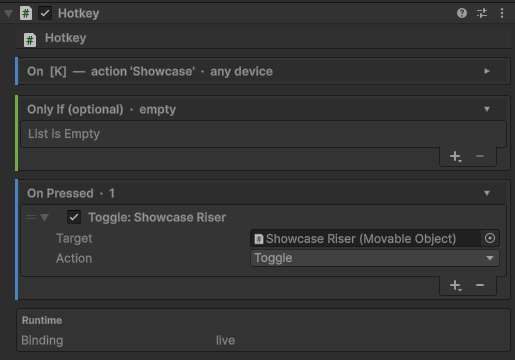
Rows inside a section are the rule itself. Each row is one node, summarised as a live sentence ("Toggle: Showcase Riser"), with a drag handle to reorder, a checkbox to switch the node off without deleting it — a disabled row behaves exactly as if it were removed, which makes debugging a rule by elimination trivial — and a fold arrow to open its parameters. Everything supports Undo.
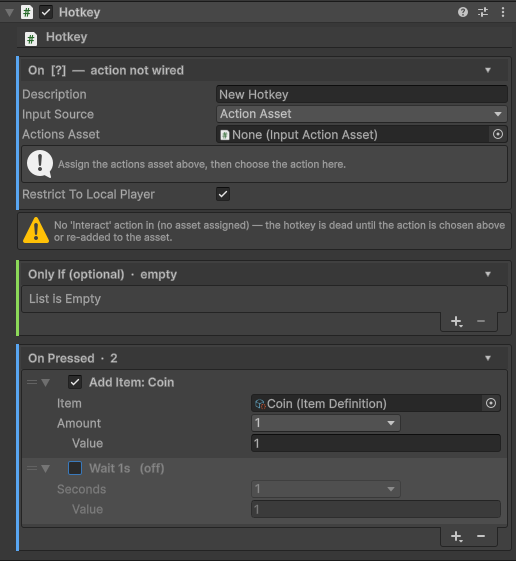
Parameters that resolve
Parameters marked with a dropdown are resolved, not fixed: the same parameter can be a dragged-in object, a typed number, this object, whoever set the event off, or a live stat read. That is what makes one node compose into many rules — a single Is Alive condition can watch a specific dummy or whoever just entered the trigger, with no extra nodes.
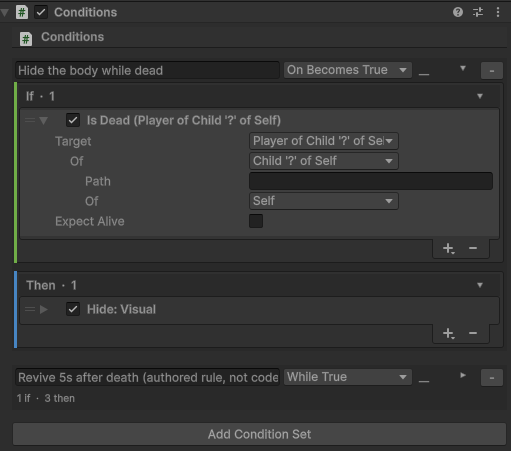
Eleven ways to name an object ship in the box, and because they nest, they compose into far more than eleven: Object (dragged in), Self, Target, Subject, Player Of, Child Of (takes a path like Body/Lid, so nested children need no second resolver), Parent Of, Scene Root Of, Component Owner, By Name and By Tag. Numbers, text, positions and on/off values have their own sets — a stat read, a distance between two objects, an object's name, a position with an offset in its own axes.
Writing a value back
Reading is only half of it. A destination is the mirror image of a resolved parameter: instead of saying where a value comes from, it says where one goes. The Set Value instruction is the plain form — a source on the left, a destination on the right.
Three destinations ship: a stat on a character, a remembered number on an object (which survives a save), and Discard— an explicit “nowhere” that is the default. That default is the point: a freshly added Set Value writes nothing until you have said where, rather than defaulting into the first stat it can find and quietly changing your game.
Hotkey input sources
A Hotkey's Input Source is chosen, never typed. Action Assetis the recommended default: the action is picked from the project's input actions (each entry shows its live bindings, e.g. Interact [E | Y]), works on every bound device, and can be restricted to the pressing player in local co-op. Keyboard and Mouse bind a single key or button directly — including keys that are not part of the action configuration at all.
If, then
A rule block is a description, a list of conditions (all must pass), and a list of instructions run in order. Every condition carries its own sign at the front of the row: click If and it becomes Not, so the condition passes while it does nothold. That is how “while nobody is in the trigger” is written — one click on the condition you already have, rather than a second inverted copy of every condition in the library. Conditions are edge-triggered — the instructions fire once when the conditions become true, not every frame they stay true. An instruction can abort the rest of its list by failing: "add item to bag, then remove pickup" leaves the pickup in the world when the bag is full, exactly because the failed add stops the removal.
A wave spawner with zero code
Repeat Every Seconds runs its own nested instruction list on a timer — for a count, or until the round leaves Running, or until the object it lives on is switched off. Paired with Toggle Object, it is the whole wave spawner a tower-defense-style build needs: a Conditions behaviour on the fort, one Repeat Every Seconds instruction set to 20 seconds, and its nested list turns on the next wave's dummies — no WaveController script required.
Modify Stat now takes the same kind of Target parameter Toggle Object already has, defaulting to the subject (whoever fired the rule) so every existing rule keeps working unchanged. Point it at a named object instead — a Fort, a Door, anything carrying CharacterStats — and a trigger at the wall line can drain a shared team resource when something reaches it, the same “poison pool” pattern the docs already showcase, just aimed at a different object than whoever walked in.
Seeing a rule run
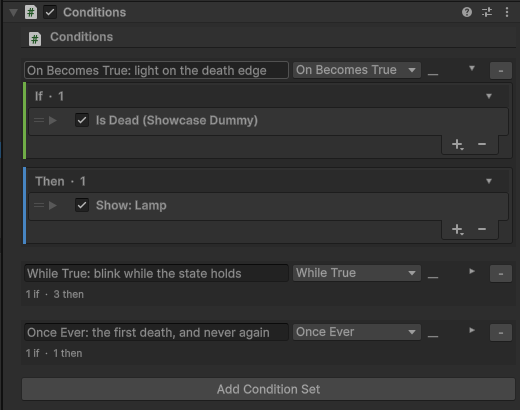
In play mode the inspectors report their live state where you are already looking: a Trigger shows how many objects are inside, an Interactable shows whether a player has it focused, a Hotkey shows whether its binding is live, and each polled rule's header shows holds, — or ran as its state changes.
Rules also show themselves running. When a set's instructions fire, the row lights up for a moment, so a rule that ran and did nothing visible is still distinguishable from a rule that never ran at all — the first question worth answering when something does not happen.
Stopping the game on a rule
Any condition or instruction can carry a breakpoint. When that row is reached in play mode, the editor pauses — the scene frozen at the exact moment, with every object still in the state that reached it. It is the debugger you already know, aimed at a rule instead of a line of code.
A breakpoint marks itself with a dot at the row's left edge, and nothing is drawn there at all when it is off, so a scene full of rules stays quiet until you set one. They cost nothing when unset — a single flag read on a path that was already running.
Stable scene identity
World objects that rules reference (chests, pickups, gates) carry a stable scene id, so consumed pickups and looted chests stay consistent across machines and for late joiners — without turning every crate into a networked object.